
The 3-2-1 backup rule, explained
The 3-2-1 rule means keeping three copies of your data, on two different kinds of storage, with one copy somewhere else. Each number covers a different kind of loss: accidents, a failed drive, or fire, theft and ransomware. The copies only matter if a restore has actually been tested.

The 3-2-1 backup rule is a rule of thumb for keeping copies of your data: keep three copies, on two different kinds of storage, with one of them somewhere else entirely. Each number closes a different gap. The extra copies protect against ordinary mistakes, the different kinds of storage protect against one device dying, and the off-site copy protects against everything at one address going at once. Neither government page cited below prints the slogan itself: they set out its parts, and those parts are what this article explains.[1][2]
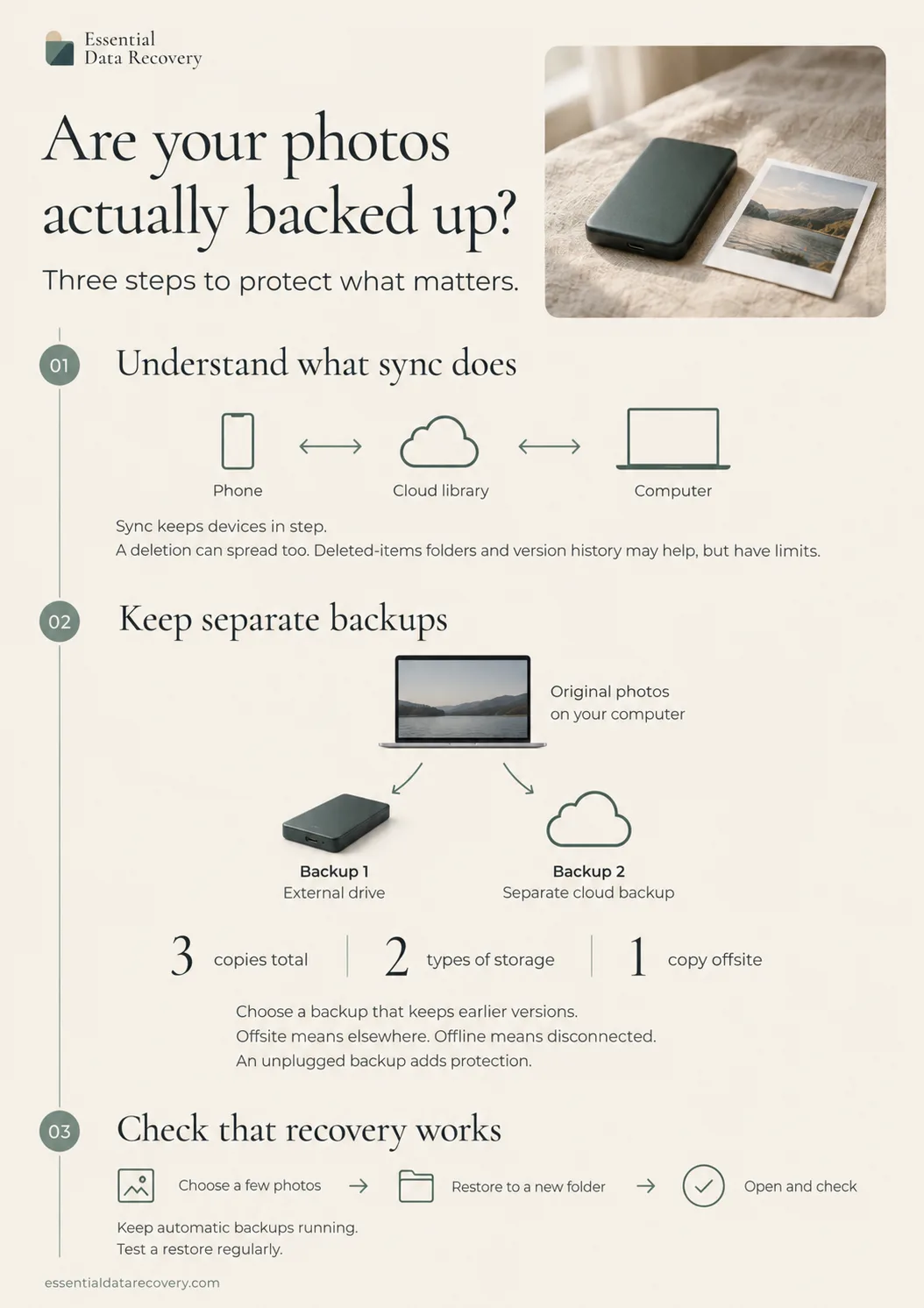
Three copies: your working file is not one of them
The first copy is the file you are working on, and it does not count. It lives in one place, shares every risk that place has, and changes every time you save, so the rule only starts counting once a second version exists on purpose. Two copies rather than one covers the most common loss of all, the accident: a file overwritten by mistake, a folder dragged to the wrong place, a memory card formatted while the photos on it were still needed. The UK's National Cyber Security Centre (NCSC) puts the principle plainly in its ransomware guidance: make multiple copies of your files, using different backup solutions and storage locations.[2]
Two different kinds of storage
The second number is about copies that can be lost together. Two copies on the same drive are really one copy wearing a different name: if the drive fails electrically, or is stolen along with the laptop, both go at once. The same guidance makes the point from the other direction, warning against keeping two copies on a single removable drive, or several copies within a single cloud service. In practice that means copies on genuinely separate things: the computer, an external drive, and a cloud backup of your own.[2]
One copy somewhere else
The third number covers the losses that take out a whole room. A fire, a flood, a burglary or a nearby lightning strike does not care how carefully your backups are filed if they sit beside the computer they protect, so one copy needs to live at a different address. Ransomware belongs in this group too, and the NCSC is explicit about why: it actively targets backups to increase the likelihood of payment, and attackers go after connected backup devices and solutions to make recovery harder. The same agency calls up-to-date backups the most effective way of recovering from a ransomware attack, which is why the copies come before anything else. It is also why the agency advises an offline copy, kept separate in a different location and ideally off-site.[2]
A drive left permanently plugged in is not an offline copy, whatever its label says. The NCSC warns that devices holding backups, such as external hard drives and USB sticks, should not be permanently connected, because attackers will target them. If your backup software keeps the drive mounted all day, treat it as a second online copy rather than a safe one, and make sure at least one copy sits genuinely out of reach.[2]
Where the cloud fits
A cloud backup can be the off-site copy, and for many households it is the easiest to keep running. Two cautions apply. Syncing a folder between devices is not the same as backing it up: delete a file and the deletion is copied everywhere just as faithfully. And a cloud copy is only as good as its version history, because the damage you most want to undo, whether that is encryption or an accidental overwrite, happens to the current file. That is the reasoning behind the NCSC's warning against holding several copies within a single cloud service.[2]
An untested backup is a hope
Every element so far is about copies, and none of it counts until a copy has been proved to come back. A backup that has never been restored fails in ordinary ways: the software has been quietly reporting errors for months, the drive was never large enough to hold a full restore, or the password is written down nowhere. The NCSC's guidance says to check that you know how to restore files from the backup, and to test regularly that it is working as expected.[2]
A first restore test, in four steps
- Pick a handful of files that matter, including at least one from a folder you rarely open.
- Restore them to a different location from the original, so the test cannot overwrite anything you still need.
- Open each restored file and check that it is complete and usable, not merely present under the right name.
- Repeat the test every few months, and after any change of backup software, drive or computer.
One extra step matters after a ransomware incident rather than an ordinary accident: the NCSC advises scanning backups for malware before restoring them, and connecting them only to devices you know are clean.[2]
None of this helps a file you have already lost. If that is where you are, our guide covers what to do next and in what order. If the loss involved a deletion or a format, it is worth understanding what happens to the data first, because that changes what is worth attempting.
Backups after data loss: what to do next
What happens when you delete a file?
Not sure which of these situations you are in, or what to set up first? Guided help asks a few plain questions and points you to the right place.
Guided help: not sure where to start?
Sources
Facts on this page are cited to the publishers’ own documentation.
- [1] Cybersecurity and Infrastructure Security Agency (US) — Stop Ransomware | CISA. captured 2026-09-13.
- [2] National Cyber Security Centre (UK) — Mitigating malware and ransomware attacks. captured 2026-09-13.
Related pages
Backups after data loss
The backup that saves you has three properties, and official guidance agrees on them. Sync is not a backup, unplugged matters, and the built…

How often should you back up your computer?
Back up as often as the most work you can afford to lose: daily covers most people, and an hour of risk means automating it. Time Machine an…
What is a NAS drive?
A NAS drive is a hard drive inside a network storage box that every device on your network can reach. This explainer covers what NAS units a…