
Backups after data loss
The backup that saves you has three properties, and official guidance agrees on them. Sync is not a backup, unplugged matters, and the built-in tools are documented and enough for most homes.
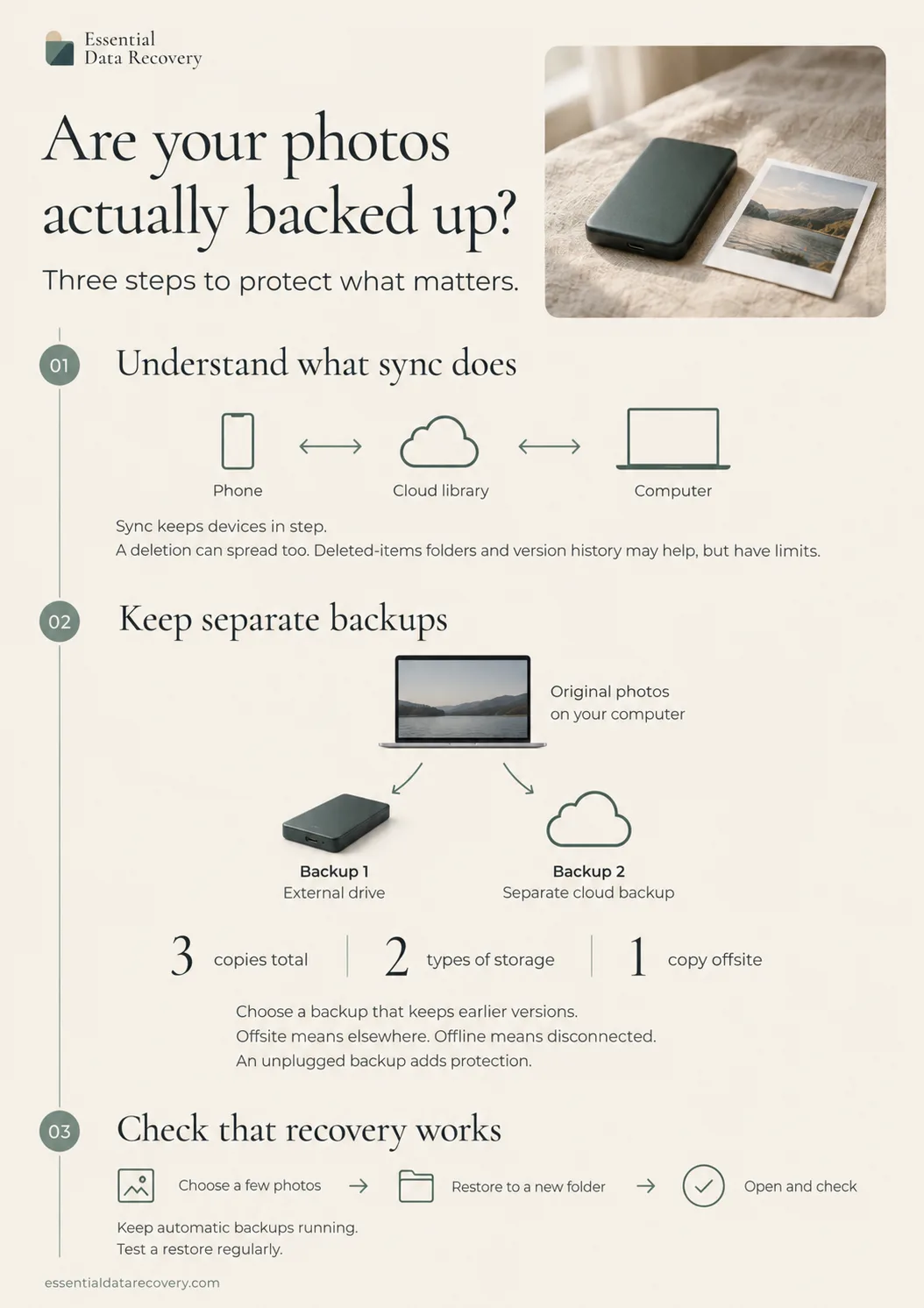
The backup that saves you has three properties, and official guidance converges on them: more than one copy, on more than one kind of storage, with at least one copy kept offline so no single disaster can reach both. Sync services feel like backups but are not; delete a file and the deletion syncs everywhere. The built-in tools on Windows and Mac are documented, take an evening to set up, and cover most homes completely.
This guide covers consumer-scale backups after you have lost data, so it is about the setup that would have saved you this time. It recommends no products; the only services named are the ones whose own documentation describes how they behave. Enterprise backup, NAS strategies and RAID are out of scope, and the RAID question has its own answer.
Still dealing with the loss itself? Guided help sorts the recovery first.
The rule the guidance converges on
CISA, the US cyber-security agency, describes the 3-2-1 rule as a trusted guideline: three copies of important files, on two different types of storage media, with one copy stored off-site. The same agency's ransomware advisory goes further, calling it critical to keep offline, encrypted backups and to test them regularly. The UK's NCSC does not use the rule by name, but its guidance lands in the same place: an online copy with a service such as iCloud, Google Drive or OneDrive, plus a copy on an external device, for two backups in different places.[1][2][3]
Sync is not a backup
This is the misunderstanding that costs people the most, and the vendors document it plainly. Windows Backup in Windows 11 syncs your main folders to OneDrive; Dropbox documents that deleting a file removes it from Dropbox, your phone and all connected computers. The safety net is the recovery window: OneDrive keeps personal recycle-bin items 30 days (93 on work and school accounts), Google Drive keeps binned files 30 days before permanent deletion, and Dropbox documents 30 days on personal plans rising to 180 or 365 on business tiers. OneDrive also documents a full-account rollback within the last 30 days, including after automatic ransomware detection, on Microsoft 365. Those windows are a useful second chance, not a backup strategy: they expire, and they do nothing for a folder you never put in the sync service.[4][5][6][7][8][9]
The built-in tools, documented
Windows' File History automatically backs up your libraries and key folders to an external drive or network location and keeps versions you can browse and restore; note that Microsoft documents no default interval on the current page, so promises about hourly backups come from folklore, not documentation. Apple's Time Machine backs up what changed, keeping hourly backups for a day, daily for a month and weekly for older months, deleting the oldest when the disk fills, with a recommendation to use a disk at least twice your Mac's storage reserved only for backups; it also keeps local snapshots, roughly hourly for 24 hours, for when the backup disk is unplugged. Set up either once and the versioning problem, overwriting a good file with a bad one, mostly solves itself.[10][11][12]
Phones: know what the backup actually holds
Phone backups have a photos rule that surprises people in both directions. Apple documents that iCloud Backup includes camera roll photos when iCloud Photos is switched off; with iCloud Photos on, your photos live in iCloud Photos, a synced copy rather than part of the device backup. Google's Android backup covers apps, contacts, settings and messages, with photos and videos covered only when Google Photos backup is on, and 15 GB free for the account. Automatic iCloud Backup runs overnight on power and Wi-Fi with the screen locked, and Apple documents that a device's backups are kept for 180 days once you switch backup off, so an old phone's safety net has a shelf life.[13][14][15]
Offline copies: why unplugged matters
The NCSC's advice is that a backup drive should not stay connected when not in use, because some viruses also affect devices attached to an infected computer; the CISA and FBI advisory says the same of ransomware, which tries to delete accessible backups first. Practically: plug the backup drive in, let it run, unplug it. An always-connected backup is one credential away from joining the original in the encryption.[3][2]
Test the restore
The half hour that makes backups real
- Restore one file from your backup this week, end to end; the NCSC's advice is to know how to restore and check the backup holds everything important.
- Open your phone's cloud account in a browser and look at what the backup actually contains, especially photos.
- Write down any backup passwords where you can find them: Apple documents that an encrypted backup's password is needed for later restores, and Android ties some backup encryption to the phone's screen lock.
- Check the backup drive still has free space, so the oldest good copy is not the first thing deleted.
Ransomware, briefly
The NCSC is unambiguous: neither it nor UK law enforcement encourages, endorses or condones paying ransom demands, and paying gives no guarantee of getting your data back. The position that makes ransomware survivable is the one this page describes: recent offline backups, tested, on storage that was not connected when the encryption happened.[16]
Is RAID a backup? Why redundancy is not a copy.
Before the next accident: what phone backups contain, from a broken screen.
Terms change
The sizes and recovery windows above are the providers' own documented terms as captured on 2026-09-12, and vendors change them without much ceremony. If a window or a limit no longer matches what you see, the correction link below is the fastest way to tell us, and we publish what we fix.
Sources
Facts on this page are cited to the publishers’ own documentation.
- [1] CISA — Back up business data (CISA). captured 2026-09-12.
- [2] CISA — AA20-302A: ransomware activity advisory (CISA/FBI). captured 2026-09-12.
- [3] NCSC — Backing up your data (NCSC small organisations guide). captured 2026-09-12.
- [4] Microsoft — Back up and restore with Windows backup. captured 2026-09-12.
- [5] Dropbox — Delete files (Dropbox). captured 2026-09-12.
- [6] Microsoft — Restore deleted files or folders in OneDrive. captured 2026-09-12.
- [7] Google — Recover a deleted file in Google Drive. captured 2026-09-12.
- [8] Dropbox — Version history overview (Dropbox). captured 2026-09-12.
- [9] Microsoft — Restore your OneDrive. captured 2026-09-12.
- [10] Microsoft — Backup and restore with File History. captured 2026-09-12.
- [11] Apple — Back up your Mac with Time Machine (Apple Support). captured 2026-09-12.
- [12] Apple — About Time Machine local snapshots on Mac. captured 2026-09-12.
- [13] Apple — About iCloud Backup. captured 2026-09-12.
- [14] Google — Back up or restore data on your Android device. captured 2026-09-12.
- [15] Apple — How to back up your iPhone or iPad with iCloud (Apple Support). captured 2026-09-12.
- [16] NCSC — Ransomware: should I pay the ransom? (NCSC). captured 2026-09-12.
Related pages
The 3-2-1 backup rule, explained
The 3-2-1 rule means keeping three copies of your data, on two different kinds of storage, with one copy somewhere else. Each number covers …

How often should you back up your computer?
Back up as often as the most work you can afford to lose: daily covers most people, and an hour of risk means automating it. Time Machine an…

How to test that your backup actually works
A backup counts only if files come back out of it. This guide shows what a real test looks like on Windows, Mac, iPhone, and Android: pull o…