
Corrupted SD card: how to get your photos off
A corrupted card means the card's file system is unreadable, so your computer offers to format it or shows an empty volume where your photos should be. The job splits in two: the files come first, the card comes second. Copy whatever still mounts, carve the rest with a tool that reads the card without writing to it, and keep every repair tool off the card until the photos are safe somewhere else.
A corrupted card is the card's filing system, not usually the card itself: SanDisk lists a corrupted file system as one cause of a card failure and physical damage as a different one. That distinction decides the order of operations. Your photos sit in the storage area underneath the broken filing system, so the job is to get them off without disturbing anything, and to leave every repair and format tool alone until they are safe. The vendor order says the same thing in its own steps: back the data up with a card reader, recover what needs recovering, and only then do anything to the card.[1]
What "corrupted" means here
This guide is for the card-level kind: the card mounts, then asks to be formatted, or shows up empty or with garbled names, because the file system that organizes your photos is unreadable. If the card opens normally and individual photos will not open, that is file-level corruption and a different page. If the card deleted or lost photos while behaving normally, that is deletion, and the deleted-photos guide owns it. If the card does not appear anywhere at all, start with the not-reading checks instead, because a reader or port fault mimics corruption.
The order that keeps your photos recoverable
Do not let the card be repaired, formatted or cleaned before your photos are copied off. SanDisk's own steps for a format-failure card put backup and recovery ahead of formatting; Microsoft's documentation says chkdsk repairs on FAT file systems, the file system most cards use, usually change the file allocation table and sometimes cause a loss of data. The repair tools are for after, when the photos are somewhere safe.[1][2]
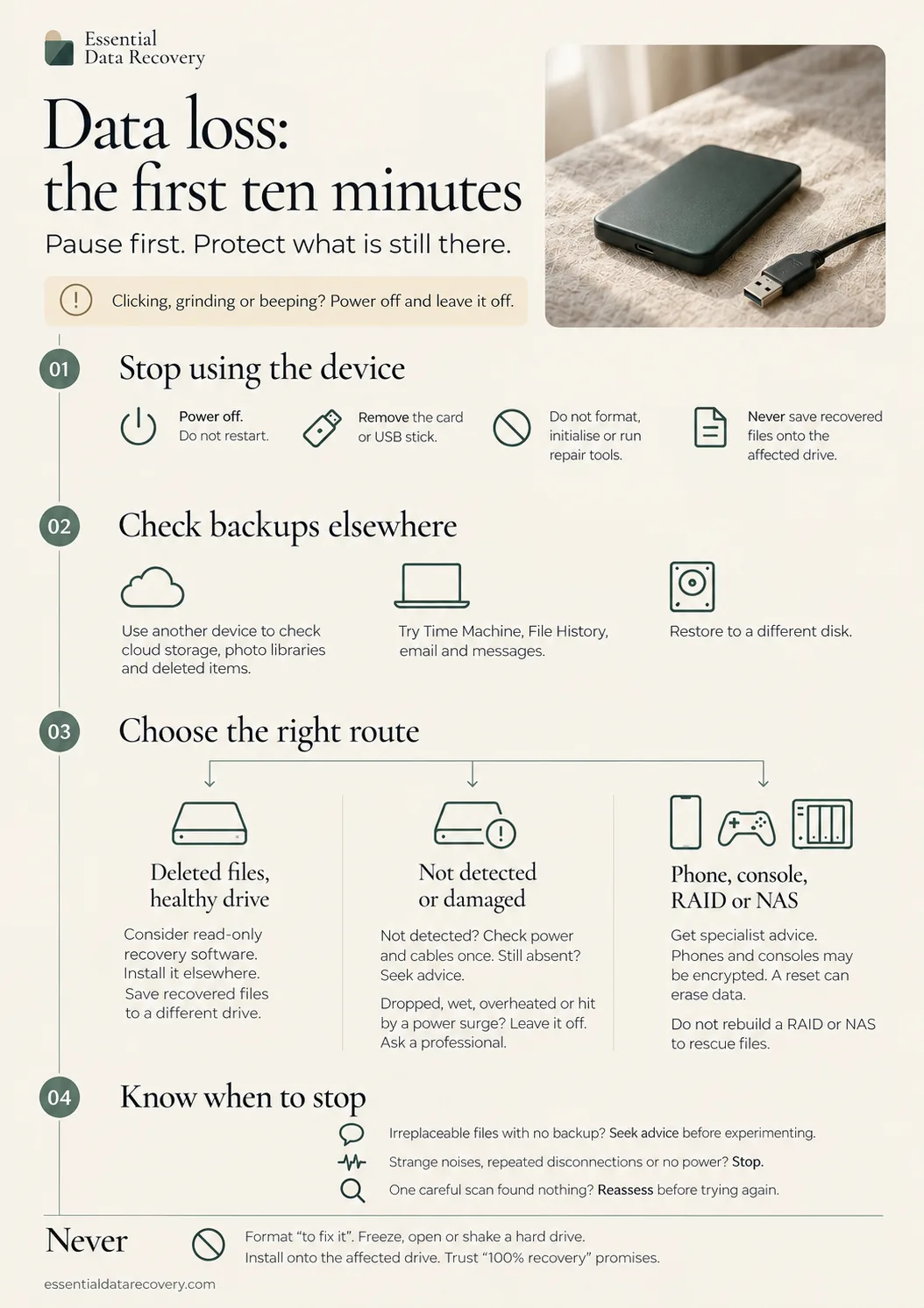
Work the list in order and stop as soon as your photos are safe: first copy whatever still opens, then carve what does not, then decide about the card.
First: copy off whatever still mounts
A corrupted file system sometimes still opens far enough to copy the important folders, even if the card looks wrong in other ways. Put the card in a proper card reader, not an adapter, and if the photo folders open, copy them straight to the computer's drive. Open a few photos from the copy to confirm they are intact. Whatever copies normally, you do not need to recover.[1]
Why the repair advice can wait
Search results for a corrupted card lead with two repair tools, and both of them change the card. On Windows, chkdsk fixes errors on the volume when run with its fix flags, and it must lock the drive to do it; without parameters it only displays the status and fixes nothing. On a Mac, First Aid is Apple's check-and-repair path for each volume and container, then the device itself. Neither tool is a recovery tool: neither one copies your photos anywhere, and the repair step is exactly the one Microsoft warns can cost data on FAT. The safe order is recover first, repair later, once the photos live somewhere else. If First Aid reports the disk about to fail, Apple's own instruction is to back up the data and replace the disk, because it can't be repaired.[2][3]
The recovery path: read the card, write somewhere else
When the file system is too broken to open folders, recovery tools stop reading the file system and look for the photo files themselves. PhotoRec documents both halves of why that works here: it ignores the file system, so it works even if the file system is severely damaged, and it uses read-only access to the drive or memory card it is recovering from. Its documented format list includes JPEG and other graphics formats, which is the part that matters for a photo card. On Windows, Microsoft's own Windows File Recovery reaches the same kind of scan in extensive mode: the mode table sends a corrupted disk on FAT and exFAT to Extensive, while Regular mode is documented for non-corrupted NTFS drives.[4][5]
Running the recovery safely
- Put the card in a card reader on the computer. Do not format it when the prompt appears.
- Pick the destination before you start: recovered files go to the computer's drive or another healthy disk, never onto the card itself. Windows File Recovery states the rule in its syntax: the destination drive must be different from the source drive.
- Run the tool against the card: on Windows that means Windows File Recovery in extensive mode; on any system, PhotoRec is the documented read-only carve option.
- Let the scan finish, then filter for the photo formats you lost (JPEG and the raw format your camera writes, if the tool supports it).
- Open the recovered photos from the destination and check they render. A file that opens is a file you have; a file that only exists in the list may not survive.
- Only now, with the photos verified somewhere else, is it reasonable to let anything repair or reformat the card.
When to stop
Two stop conditions end the home path. The first is a tool or the system reporting physical damage: Apple's page sends a disk it can't repair to replacement because it may be physically damaged, and SanDisk's last resolution step for a failed card is a warranty replacement, not another attempt. The second is your own threshold: photos that matter more than the card are worth a professional recovery quote, because every additional host, repair attempt or format makes the storage area harder to read. The card itself is replaceable; weigh the quote against the price of a new card.[3][1]
Related reading
Can the card itself be fixed? That is a different question
Card not showing up at all? Start with the not-reading checks
Photos deleted from a healthy card? The deleted-photos guide
Card opens fine but individual files won't? File-level corruption
Not sure which of these your card is doing? Guided help narrows it down
Sources
Facts on this page are cited to the publishers’ own documentation.
- [1] Sandisk Support — Steps to Resolve a Memory Card Format Failure Message on Android (Answer ID 39362). captured 2026-09-13.
- [2] Microsoft — chkdsk (Windows command reference). captured 2026-09-12.
- [3] Apple — Repair a storage device in Disk Utility on Mac. captured 2026-09-13.
- [4] CGSecurity — PhotoRec. captured 2026-09-12.
- [5] Microsoft — Recover lost files on Windows 10/11 (Windows File Recovery). captured 2026-09-11.
Related pages
Can a corrupted SD card be fixed?
Usually yes. A corrupted card can normally be made usable again by reformatting, which gives it a fresh file system, but reformatting erases…

Recover deleted photos from an SD card
Deleted photos usually stay on the card until something writes over them. What deletion and formatting really do, how to recover on any comp…

Can corrupted files be recovered?
Often, yes. Corruption damages data that is still there. Deletion is different: the file disappears, but its contents usually remain until o…