
SD card not reading: how to get your files off
A card that is not reading is one of three problems: nothing appears anywhere, the card appears and asks to be formatted, or the card works in its camera and not in the computer. Sort out which one you have, run the five-minute checks that separate a card fault from a reader fault, and stop where the vendor's own guidance says the card has failed.
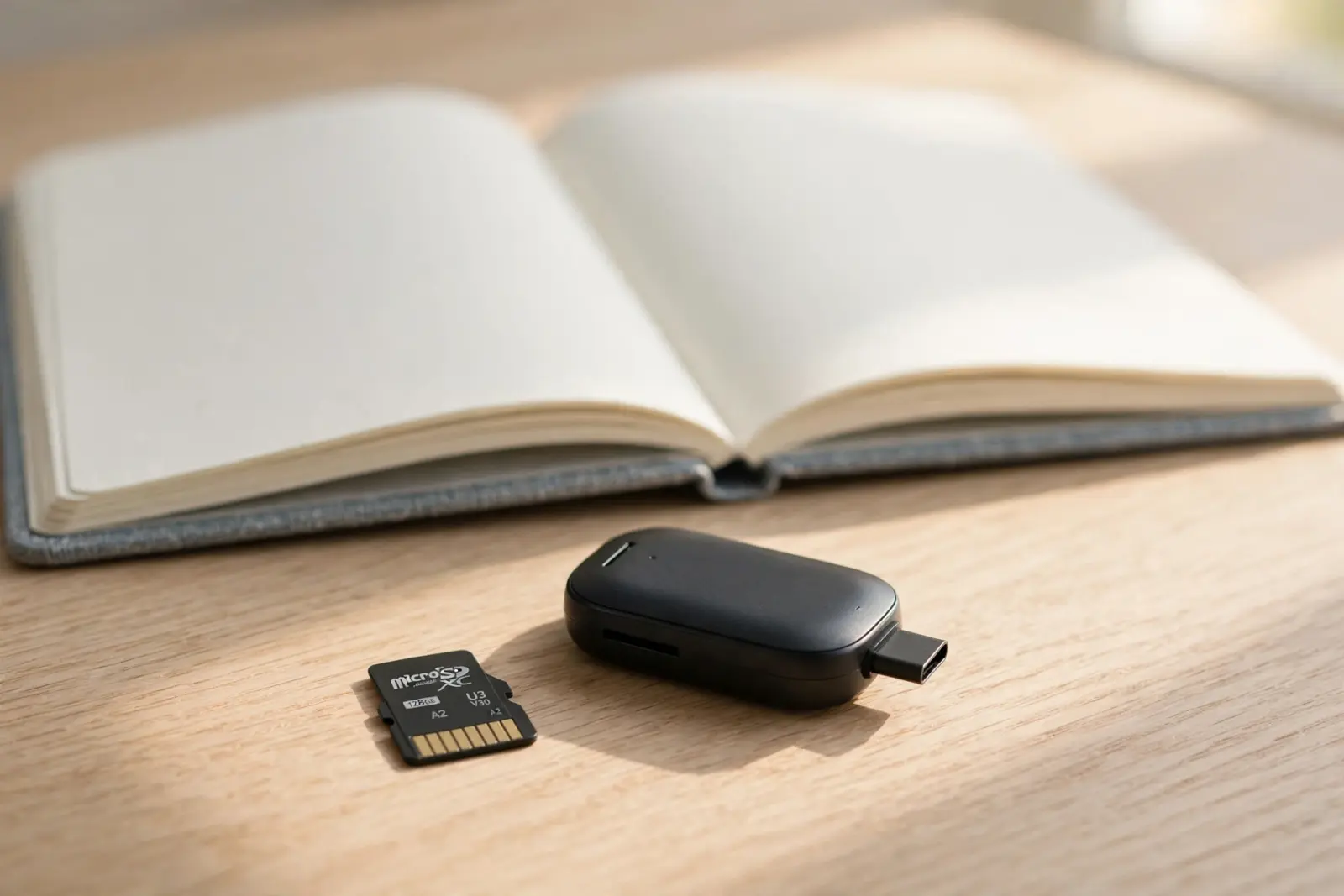
A card that is not reading is not one problem. Sometimes nothing appears at all, sometimes the card shows up and asks to be formatted, and sometimes the card works in the camera while the computer is the thing failing. Sorting out which of the three you have decides everything after it: what to try, what to stop trying, and when to move straight to getting your files off. Nothing here writes to the card.[1][2][3]
First, work out which kind of "not reading" you have
Match your situation to one of the three below. Each points somewhere different.
Nothing appears anywhere
The card is in the reader and no new drive or icon turns up: no window, no sidebar entry, nothing in Disk Management or Disk Utility. SanDisk documents this exact symptom for cards on a Mac, where the card is plugged in and never mounts to the desktop. On a Mac you can separate the reader from the card quickly: open System Information and look at the USB list. If the reader appears there, the port and reader are working and the question becomes whether any volume mounted.[1]
The card appears, then asks to be formatted
The card mounts but announces a problem instead of opening. SanDisk treats a format prompt as its own category of card problem, with a cause list of its own: an unsupported file system, a corrupted file system, or a damaged card. That article is written for Android phones; the same causes are what a format prompt in a card reader usually means. What to do instead is below, and the answer to the prompt is no, for now.[2]
It works in the camera but not the computer
This one is often compatibility rather than damage. A reader that predates SDHC reads 2GB cards and smaller but cannot read 4GB and larger SDHC cards, and SanDisk notes that computers and products bought before 2008 may not be SDHC compatible. The same boundary logic continues at each capacity generation. If the card came out of a working camera, that is the useful clue, and the checks below use it.[3]
The five-minute checks
These checks cost nothing, change nothing on the card, and sort a card fault from a reader or computer fault. Run them first.
Pin the fault to the card or the reader
- Take the card out, put it back the way the device's manual describes, and note any error message the device shows.
- Move the card or reader to a different port. If you were going through a hub, plug straight into the computer instead.
- Try the card in another computer if you can.
- Put the card back in the device it came from and see whether the device still reads it.
- microSD in a full-size SD adapter? Take the adapter out of the path: SanDisk's instruction for getting at data is that microSD adapters should not be used, and to use a card reader instead.
- If the device that does read the card is a camera, skip the reader argument: connect the camera to the computer with its own USB cable and copy the files across that way.
Read the results this way: a card that behaves the same everywhere is the suspect, and a card that reads somewhere else clears itself and condemns the reader, port, or computer. The second outcome is the good one, because a replacement reader is cheap.[5]
The lock switch
A locked card refuses changes, not access. SanDisk states that content on the card cannot be added or changed while it is locked, which is a write block: reading the files back is not affected. Full-size SD cards carry the Lock switch on the left edge, and the unlocked position is slid up. A microSD card has no switch of its own, so the switch that matters is the one on the adapter, and it should be up and unlocked. A loose switch is a verdict rather than a puzzle: a card whose switch slides to locked as it goes in needs replacing, and so does an adapter whose switch slides too easily.[5][7]
If the card prompts you to format: don't
Do not format a card that still holds files you have not copied off. SanDisk labels its own format step with the sentence that matters: the process is data destructive and cannot be undone. The vendor's order of operations is the reverse of the prompt: access and back up the data with a card reader, recover what needs recovering, and only then consider formatting. A format is the last step in that list, not the first response. The corrupted SD card question is linked at the end.[5][2]
If the card appears but the files are missing
A card that mounts but does not show your files is a different problem with its own page. One cause is worth naming here because it is the cheap one: hidden or cached files on the card, which SanDisk lists among the possible causes and handles with a check for them rather than any repair. If that check turns up nothing, the card-says-full page covers the rest, and deleted files belong to the deleted-photos guide.[6]
When to stop
The checks end in one of two places. The first is a card that reads somewhere, anywhere: a different reader, another computer, the camera it came out of. Copy your files off that way, then replace whichever part of the path was failing. The second is a card that reads nowhere, and there the vendor guidance is blunt: when the computer reports a USB Device Not Recognized style error, SanDisk says the drive is most likely failed and additional troubleshooting is unlikely to correct the problem. For a misbehaving host, the vendor step is to power it off and on with the card removed, and a failed card goes to warranty replacement, not another round of attempts.[8][6]
Until the files are safe somewhere else, keep refusing anything that writes to the card: no formats, no repair tools, no cleanup.[5]
Related reading
Files are there but photos are missing? The deleted-photos guide
Can a corrupted SD card be fixed?
Card says it's full but shows nothing? That is a different problem
A USB hard drive or SSD not showing up is a different guide
Not sure what your card is doing? Guided help narrows it down
Sources
Facts on this page are cited to the publishers’ own documentation.
- [1] SanDisk (Western Digital), retired knowledge base article, via Wayback Machine — USB Flash Drive / Memory card not detected on Mac USB port (SanDisk Answer ID 13015). captured 2026-09-14.
- [2] Sandisk Support — Steps to Resolve a Memory Card Format Failure Message on Android (Answer ID 39362). captured 2026-09-13.
- [3] SanDisk (Western Digital), retired knowledge base article, via Wayback Machine — Computer (with internal card reader) or digital camera fails to read 4GB, 8GB, 16GB, or 32GB SDHC card (SanDisk Answer ID 54). captured 2026-09-14.
- [4] SD Association — Consumers FAQ: What is the service life of an SD memory card?. captured 2026-09-13.
- [5] SanDisk support — Solutions to a Write Protected, Read-Only, or Locked microSD Memory Card (SanDisk Answer ID 38933). captured 2026-09-14.
- [6] SanDisk support — Steps To Resolve microSD and SD Memory Card Is Full or Not Accessible Message (SanDisk Answer ID 52422). captured 2026-09-14.
- [7] SanDisk (Western Digital), retired knowledge base, via Wayback Machine — SD/SDHC/SDXC memory card is write protected or locked (SanDisk KB Answer ID 1102). captured 2026-09-13.
- [8] SanDisk (Western Digital), retired knowledge base article, via Wayback Machine — Cruzer flash drive NOT detected by Windows PC (SanDisk Answer ID 10). captured 2026-09-14.
Related pages
Can a corrupted SD card be fixed?
Usually yes. A corrupted card can normally be made usable again by reformatting, which gives it a fresh file system, but reformatting erases…
Corrupted SD card: how to get your photos off
A corrupted card means the card's file system is unreadable, so your computer offers to format it or shows an empty volume where your photos…
Why does my SD card say it's full when there are no files?
Usually the space is genuinely in use: files your file browser hides by default, or housekeeping folders a Mac, a phone, or a camera left on…