
What is a NAS drive?
A NAS drive is a hard drive inside a network storage box that every device on your network can reach. This explainer covers what NAS units are used for, the RAID redundancy inside them, why that redundancy is not a backup, and what happens when one of the drives fails.
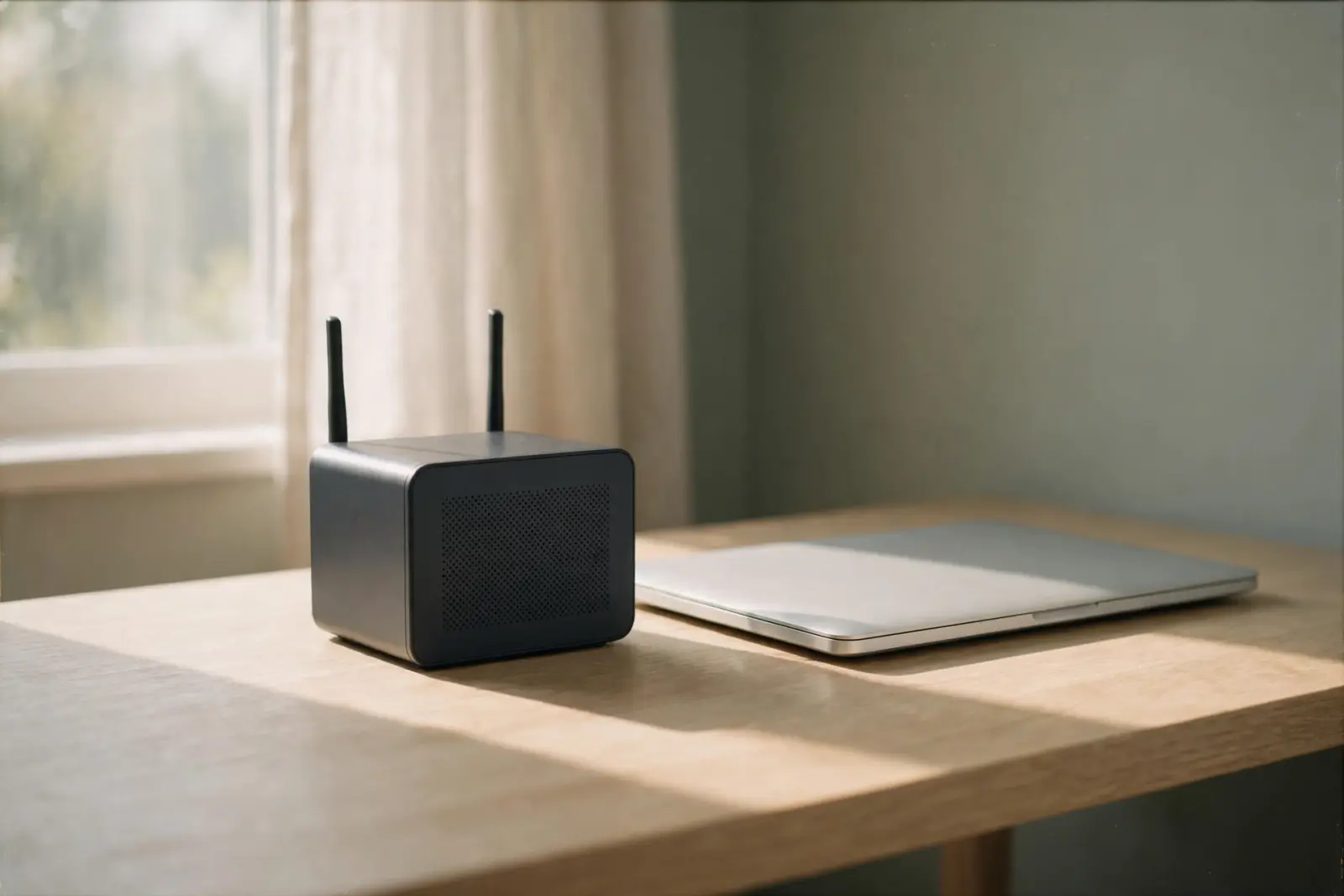
A NAS drive is a hard drive that lives inside a network attached storage device: a small box built for one job, holding its own drives and plugging into your router rather than your computer. Because the box sits on the network, every device in the house reaches the same files in the same place, which is the whole point: one central copy instead of copies scattered across laptops and external drives. That design is also where NAS owners get caught out later. The box is built to survive one of its drives dying, but surviving a dead drive is not the same as backing up, and the way a NAS fails has risks of its own.[1]
What a NAS actually is
A NAS is a small computer purpose-built for storing and serving files. NAS maker ASUSTOR describes the parts plainly: one or more hard drives, an Ethernet connection, and an operating system, attached directly to the network so that people on it can access and share files from a centralized location. It is not an external drive with a network socket bolted on. The box runs its own software and manages its own disks, and it works whether or not any particular computer is switched on.[1]
What people use them for
Vendors document a consistent set of home and small-office uses. The big one is backup: computers on the network back up to one central location instead of each to its own drive. Others are remote access to your files over the internet as a personal cloud, streaming music and video to phones, game consoles and media players, printer sharing, and adding functions through installable apps.[1]
For Mac owners, a NAS can be the Time Machine destination. The vendor walkthrough is to create a shared folder on the NAS, connect to it from macOS, then add a backup task in Time Machine settings and pick that shared folder as the backup disk. From there, backups run on the usual schedule without a drive plugged into the Mac.[2]
Two cautions come from the same walkthrough. Connect with SMB, not AFP, because AFP is being phased out in later versions of macOS. And think hard before encrypting the backup: if you encrypt a Time Machine backup and forget the password, the vendor states you will not be able to recover data from that backup.[2]
The RAID inside it, in plain terms
Most NAS units hold several drives, and the drives are arranged, using what is called RAID, so that the data survives a drive dying. RAID stands for redundant array of independent drives. In plain terms, copies or repair information are spread across the disks, so when one disk stops, every file is still intact and the NAS keeps serving it. Redundancy is paid for in space: some of the raw drive capacity goes on that repair information, so a four-drive box never gives you four drives of storage. The trade-off is a setup decision you make once, and the vendor documentation covers the arrangements and their costs. What matters day to day is the guarantee they give and, just as important, the guarantee they do not.[3]
Redundancy is not backup
A NAS with redundant drives survives one drive failing. That is close to all it survives. ASUSTOR's own backup lesson lists RAID as a backup misconception: "a RAID array is not actually a backup, but a fault-tolerant mechanism that provides protection against drive failure." Deletion shows why. Erase a shared file, or have ransomware encrypt your shares, and the change is carried faithfully onto every drive in the box, because the drives hold the same files by design. Fire, flood or theft takes all the drives at once, since they share one address. And the box itself, its power supply or its management software, is a single point that no amount of drive redundancy covers.[4]
This is why backup guidance, including the vendor's, lands on the 3-2-1 rule: at least three copies of your data, on two different types of storage, with at least one copy off-site, and restores you have actually tested. The vendor calls that the minimum standard for safe backups. A NAS can be one of those copies, the fast local one. It cannot be all of them.[4]
The 3-2-1 backup rule, explained
What happens when a drive fails
One drive dying in a redundant NAS is not data loss. The NAS flags the failed disk and keeps serving files in a reduced state. You replace the failed drive with a new one, and per the vendor's documentation the new drive is automatically accommodated into the configuration, which rebuilds the lost data onto it. If you assigned a spare drive in advance, the NAS swaps it in and starts synchronizing on its own, with no downtime. Either way, the fix is a replacement drive and patience while the rebuild runs.[3]
The rebuild is the risky part. While the NAS runs with a drive down, and for as long as the rebuild takes, the array's protection is already spoken for: these arrangements tolerate one failed drive, at most two in the largest common setup, and rewriting every block onto the new disk is heavy, sustained work that takes longer as drives get bigger. If a second drive fails or shows errors before the rebuild finishes, the documented protection is exceeded and the volume is in real danger. Treat a degraded NAS as urgent: get the replacement in promptly, go easy on the box while it rebuilds, and if the rebuild fails or errors appear, stop making changes and get advice before doing anything else to it.[3]
RAID 5 failure: rebuild mistakes that lose data
When to get recovery help
Some NAS situations are past the replace-and-rebuild fix: two or more drives have failed at once or in quick succession, a rebuild was interrupted or failed partway, the NAS itself no longer starts, or files were deleted from shares and there is no backup to restore from. Once a failure goes beyond what the array was arranged to tolerate, the fixes people reach for, forcing another rebuild, reinitializing the volume, factory resetting the box, are the ones that can finish the job of destroying the data. Recovery from multi-drive NAS failures is specialist work, and the files are often still on the disks when it starts.[3]
Can data be recovered from RAID or NAS?
If you are reading this after a loss rather than before one, the order of operations matters more than the shopping list. Our guide covers what to secure and what to avoid after data loss, starting with getting everything still readable onto a separate device before anything else changes.
Backups after data loss: what to do next
Related reading
Not sure which of these situations you are in, or what to set up first? Guided help asks a few plain questions and points you to the right place.
Guided help: not sure where to start?
Sources
Facts on this page are cited to the publishers’ own documentation.
- [1] ASUSTOR Inc. — NAS 101: Introduction to ASUSTOR NAS. captured 2026-09-13.
- [2] ASUSTOR Inc. — NAS 108: Using NAS with Apple macOS. captured 2026-09-13.
- [3] ASUSTOR Inc. — NAS 251: Introduction to RAID. captured 2026-09-13.
- [4] ASUSTOR Inc. — NAS 152: Introducing 3-2-1-Compliant Backups. captured 2026-09-13.
Related pages

Can data be recovered from a RAID or NAS?
Usually yes, and the outcome depends on which failure you had. One dead drive in a redundant array leaves the data on the surviving drives, …

The 3-2-1 backup rule, explained
The 3-2-1 rule means keeping three copies of your data, on two different kinds of storage, with one copy somewhere else. Each number covers …
Backups after data loss
The backup that saves you has three properties, and official guidance agrees on them. Sync is not a backup, unplugged matters, and the built…