
SSD detected in BIOS but not in Windows: getting the drive seen again
Your firmware lists the SSD but Windows does not, which points at the layer between the drive and the operating system rather than at the drive itself. This guide separates the three cases that look identical from the outside: Windows setup with no drives listed, a running Windows hiding the disk in Disk Management, and a drive that is failing.
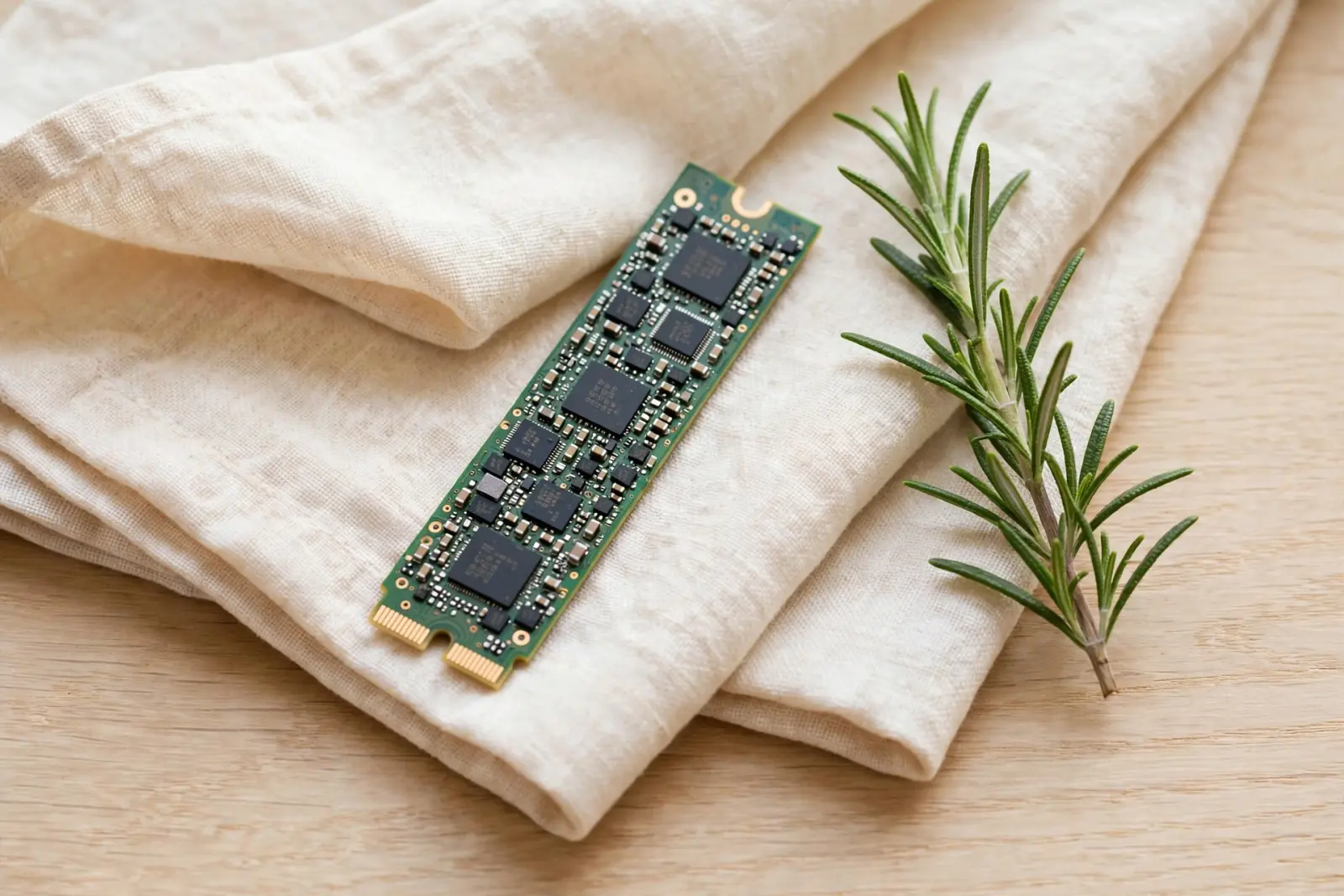
Your firmware lists the SSD and Windows does not, which means the drive has power and a working connection and something between the firmware and the operating system is not passing it along. Three situations look identical from the outside: setup offers no drives, running Windows has the disk but hides it, or the drive is failing. Two fix in a minute. The third, an uninitialized disk, ends in an offer that erases everything on it, so know which situation you are in before you click anything.[1]
What the BIOS seeing it tells you
Firmware detection rules out the boring causes. The SSD is seated, powered, and answering its controller, so cables and power are not the problem. What is left is the handoff to Windows. Microsoft's troubleshooting for this class of failure, the Inaccessible_Boot_Device stop error, points at exactly that layer: storage stack drivers, changes to the storage controller mode or settings in the BIOS, and a different controller than the one Windows was installed with. Microsoft writes that list about a computer that will not boot, but the same layer is where a second drive goes missing, so controller configuration comes first here.[1]
The drive is missing during Windows setup
Windows setup does not run full Windows. It runs from Windows PE, which Microsoft describes as carrying a generic set of drivers that can run networking, graphics, and mass storage devices. A controller outside that generic set is invisible to the installer even though the firmware sees the drive, and that is the usual story on recent laptops.[2]
When setup lists no drives
- At the disk selection screen, choose Load driver and load the storage driver your computer's maker publishes for your model.
- Look at the storage or SATA configuration setting in your firmware's setup screen. On Intel client systems the mode is usually labeled VMD or RST, and either switching that mode or loading the vendor driver is the published remedy.
- Treat a mode change as an install-time fix: Microsoft lists changes to the storage controller mode as a cause of Inaccessible_Boot_Device, so changing it where Windows already boots can leave that installation unable to start.
- Note the original setting before you change anything.
- Treat VMD and RST as common labels, not a promise: no manufacturer's own page could be checked for this guide, so confirm the setting's name in your setup screen or manual.
A different message means the opposite problem: setup sees the disk but refuses it. "Windows cannot be installed to this disk. The selected disk is not of the GPT partition style" means the disk's partition style does not match the firmware mode you booted setup in. It is a configuration mismatch, not a broken drive, and fixing it usually means matching the boot mode or repartitioning; repartitioning erases the disk, so do not do it while the drive holds files you want.[3][4]
Windows is running: check Disk Management before anything else
If Windows is up and the SSD is absent from File Explorer, Disk Management answers it in a minute for the three common cases: the disk is listed as Not Initialized, it is listed as Offline, or it is listed with healthy partitions and no drive letter.[4][5]
Read the status in Disk Management
- Right-click the Start button and select Disk Management, or press the Windows key and R, type diskmgmt.msc, and press Enter.
- Find your SSD by capacity in the lower pane.
- Read the strip left of the disk's bar: that is the status line, where Not Initialized or Offline appears.
- Match what you see to the three cases below and act on that case only.
Not Initialized means Windows reaches the disk but cannot find a valid disk signature. Microsoft ties the missing-from-File-Explorer, Not-Initialized combination to exactly that: no valid signature, from never being initialized or from corrupted formatting. A new SSD shows it, and initializing is correct. An SSD that held your files shows it too, and initializing that one is not.[4]
Offline is the easy one. The disk is fine and simply not in use; right-click the offline disk and select Online, and it should reappear in File Explorer.[4]
A disk with a healthy file system and no drive letter is invisible in File Explorer even though nothing is wrong with it. Assigning one through Disk Management's drive letter procedure brings it back. Microsoft's caution comes with it: do not change the letter of a drive that holds Windows or your apps.[5]
Before you initialize that disk
Initializing is not a harmless click. Microsoft's warning is blunt: "If you want to initialize a disk already in use, first save the existing files to a backup location. The initialization process erases all data on the disk." What initialization writes is the partition style Windows uses to read the disk, GPT or the older MBR, with GPT the default. The dialog looks like routine setup; accepting it destroys the file system before anything has been recovered. Microsoft says the same about formatting: it erases all data, so skip that step if you are recovering files. If these files exist nowhere else, initialization is a decision, not a default.[6][4]
So order matters: if the data on this disk matters, recover it before accepting anything Disk Management offers. If the disk is new or empty, initialize and take the default GPT style.[6][4]
When the SSD itself is failing
Sometimes the answer is the drive. Microsoft ranks the causes for a disk that will not initialize or has gone missing and puts one first: the most common reason is that the disk is failing. A failing SSD can also be intermittent, listed one boot and gone the next, which reads like a Windows problem because it keeps coming back.[4]
Microsoft treats that on-and-off behavior as a data-loss warning, not a quirk: if a disk sometimes does not appear or gives errors, consider it a reminder to double-check your backup methods. Do that first, then check the drive's health. Health data will not fix the handoff problem, but it tells you whether the fixes here are worth a failing drive's remaining life.[4]
Related reading
The drive is missing from the BIOS too? Start here instead
Windows wants to format the drive? The RAW guide
An external drive Windows can see but not open
How SSDs fail, and why there is often no warning
Check the drive's health before you trust it
Not sure which situation matches? Guided help narrows it down
Sources
Facts on this page are cited to the publishers’ own documentation.
- [1] Microsoft Learn — Stop error 7B or Inaccessible_Boot_Device troubleshooting - Windows Client. captured 2026-09-14.
- [2] Microsoft Learn — Windows PE (WinPE). captured 2026-09-14.
- [3] Microsoft Learn — Windows Setup: Installing using the MBR or GPT partition style. captured 2026-09-14.
- [4] Microsoft — Troubleshoot Disk Management. captured 2026-09-12.
- [5] Microsoft — Change a drive letter. captured 2026-09-12.
- [6] Microsoft — Initialize new disks. captured 2026-09-12.
Related pages
SSD disappeared from BIOS
A drive absent from the BIOS is invisible to every recovery tool, so the documented checks come first: ports, seating, cables, M.2 sharing a…

External drive not detected
A drive that appears nowhere is usually power, cable or port before it is dead. The documented checks in order, what each error code means, …
How SSDs fail
SSDs fail in one of two ways: the controller dies, and the drive vanishes instantly with no noise or slow decline, or the NAND flash wears o…