
USB stick vs external hard drive
A USB stick (most US readers say flash drive or thumb drive) is flash storage with no moving parts. A portable external hard drive is spinning platters under read/write heads. That one difference explains their durability, their capacity and cost per gigabyte, and what each looks like when it fails.
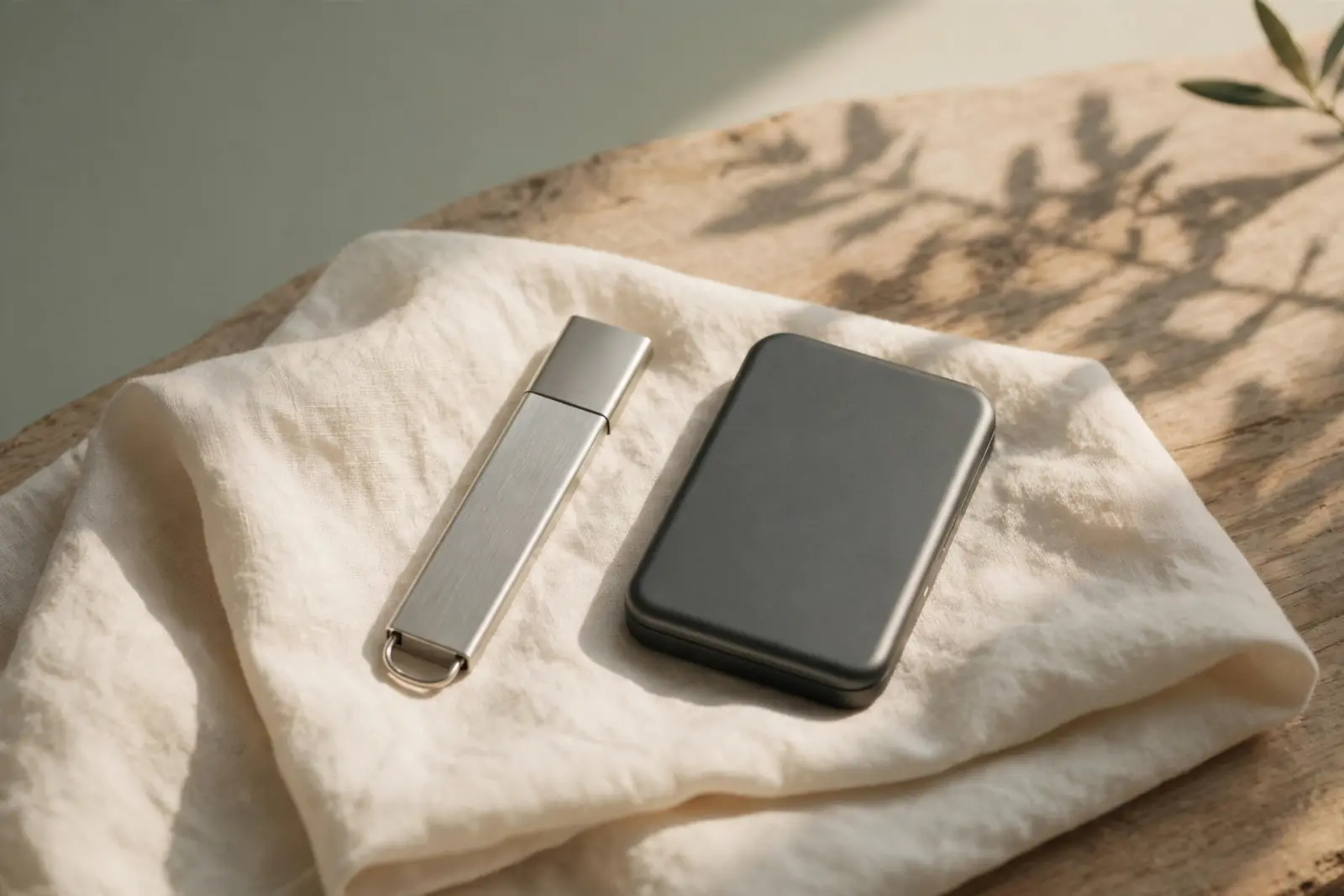
A USB stick and an external hard drive both carry files. In the US the stick is usually called a flash drive or a thumb drive. The two are built differently, and that one difference drives everything else: a stick is flash storage with no moving parts, while a portable hard drive spins platters under flying read/write heads. A third option, the portable SSD, is flash storage in a drive-sized case. Construction decides how each survives a knock, how much storage a dollar buys, how fast each feels, and what a failure looks like. This page compares them on each, then sorts them by job.[1][2]
What each one actually is
A USB stick is the same two-part recipe as a portable SSD shrunk to pocket size: NAND flash plus a small controller on one board, in a case with the USB plug on the end. No platters, no heads, no motor, so nothing inside it cares which way up it is. Western Digital describes solid state storage the same way: flash memory with no moving parts, the class it recommends where speed is critical. The difference between a stick and a portable SSD is size, connector and how much flash is inside, not the underlying technology.[1]
A portable external hard drive is a laptop-class hard disk drive in a case. Western Digital describes the technology plainly: spinning platters and read/write heads, refined over decades for reliability, massive capacities and long-term storage. That mechanism drives the rest of this comparison.[1]
Durability: knocks, drops and pockets
On knocks and vibration, the no-moving-parts camp is the tougher one. Western Digital states that SSDs resist shock and vibration due to their lack of moving parts, and its comparison table scores the HDD as reliable in desktops, NAS and data centers while calling the SSD shock-resistant. No drop rating in meters or feet appears on any page cited here, so none is quoted here.[1]
In a pocket or bag, the specific risk case for a portable HDD is a bump or drop while it is running, when the heads are flying over the spinning platters. A stick or portable SSD has nothing moving, so the same bump cannot misalign anything. Both can be lost or stolen; only the HDD can be shaken while it is working. A stick is the better object to carry; a desk-bound drive never has to be.[1]
Capacity and cost per gigabyte
| Class | Capacity range in the pages cited | What the cited pages add |
|---|---|---|
| USB stick (flash drive) | 16 GB to 2 TB across SanDisk's current US lineup; the mainstream Ultra Flair line runs 32 GB to 1 TB | Sold as thumb drives for data on the go |
| Portable hard drive (2.5-inch) | 1 TB, 2 TB, 4 TB and 5 TB in Seagate's Expansion portable line | Runs from the USB cable alone; no power adapter |
| Portable SSD | Flash with no moving parts, the same class WD scores as fast and shock-resistant |
Two honest notes on that table. The portable drive figures come from one product line, so they are one line's catalog, not a law of the market. And no prices appear anywhere on this page, because none were captured: retail prices churn, while the shape behind them does not.[3][1]
Power is a practical difference the capacity table hides. Seagate's portable drive needs nothing but its own cable: one USB 3.0 connection powers the drive and carries its faster transfer speeds, with no power adapter, up to that line's 5 TB ceiling. The larger desktop-class drives are the ones that need wall power.[3]
On cost per gigabyte the hard drive wins, and the statement comes from a company that sells both technologies. Western Digital's comparison lists HDDs as the best value per gigabyte and SSDs as the higher cost per gigabyte. Within the stick class the picture gets worse toward the top of the range: a 2 TB stick costs far more per gigabyte than a 2 TB portable HDD, and even mid-size sticks usually lose to HDD dollars per terabyte. Sticks compete on convenience and size, not cost per terabyte.[1]
Speed
Speed is where the cited pages give the least, so this section stays qualitative rather than quoting numbers nobody published. Western Digital positions solid state storage where speed is critical, which covers sticks and portable SSDs alike. Seagate ties its portable drive's faster speeds to a USB 3.0 port; any drive is only as fast as the port it is plugged into, so match the drive to the fastest port your computer has.[1][3]
Which for backup, which for carry
The classes split by job, not by quality. Western Digital's own comparison puts hard drives as best for backups, media libraries, NAS, surveillance and long-term storage, and solid state storage for operating systems, applications and active projects. A stick is the leave-it-on-the-keyring, move-a-few-files tool. A portable SSD is the carry-a-big-project option. Backup duty belongs to a drive that lives on a desk, not one that travels in a pocket.[1]
Whatever you choose, one drive is one copy, and one copy is not a backup. Backup drives fail, sticks get lost, and neither gives warning you can rely on. If the only copy of anything important lives on the device in question, copy it somewhere else before you do anything else with it, then set up a real backup routine.[1]
What breaks, and what that means
The families fail differently, and they recover differently. Western Digital notes that after a mechanical hard drive failure, professional recovery is often possible because the data remains intact on the platters, while an SSD controller failure makes recovery significantly more difficult and costly. Sticks fail the same way SSDs do, through the controller or the flash, which is why a dead stick is usually quieter than a dying hard drive: no click, no warning, the drive just stops appearing.[1]
If a drive or stick stops working
- Stop using it. Anything written from here on can overwrite data still on the media.
- If it is a hard drive making new noises, power it down and leave it off. The mechanism is failing, and repeated attempts make the platters harder to read.
- If it is a stick that no longer appears when plugged in, try one different port and cable, then stop. Sticks give no mechanical warning before they fail.
- If the problem started with a format rather than a failure, that is a different situation with its own recovery path.
- Where the data matters, let a professional make the call; how hard and how costly depends on which family the device belongs to.
Related reading
These take you from choosing a device to living with one.
Recovering files after formatting a USB drive
How long USB sticks and SD cards last
NTFS or exFAT? Choosing a format for an external drive
Not sure which describes your situation, or a device is already misbehaving? Guided help asks a few plain questions and points you to the right place.
Sources
Facts on this page are cited to the publishers’ own documentation.
- [1] Western Digital — HDD vs SSD (Compare & Learn). captured 2026-09-13.
- [2] SanDisk — Shop All USB Flash Drives: Thumb Drives for Data On-The-Go | Sandisk. captured 2026-09-13.
- [3] Seagate — Seagate Expansion portable drive Data Sheet (DS2060.1). captured 2026-09-13.
Related pages
SSD vs HDD
A hard drive stores data on spinning magnetized platters read by a mechanical arm; an SSD stores it on flash chips with no moving parts. Tha…
How long do USB sticks and SD cards last?
SD cards and USB sticks store data as electric charge in flash memory, and that charge can only be rewritten a limited number of times befor…
Can a magnet erase a hard drive?
For a spinning hard drive, the fridge-magnet scare is mostly myth: a magnet retailer's own experiment left a running drive's data unchanged …