
Are your photos actually backed up?
Three steps to protect what matters: understand what sync does, keep backups that sync is not, and check that recovery actually works. Print it, share it, pin it up.
The one-page infographic
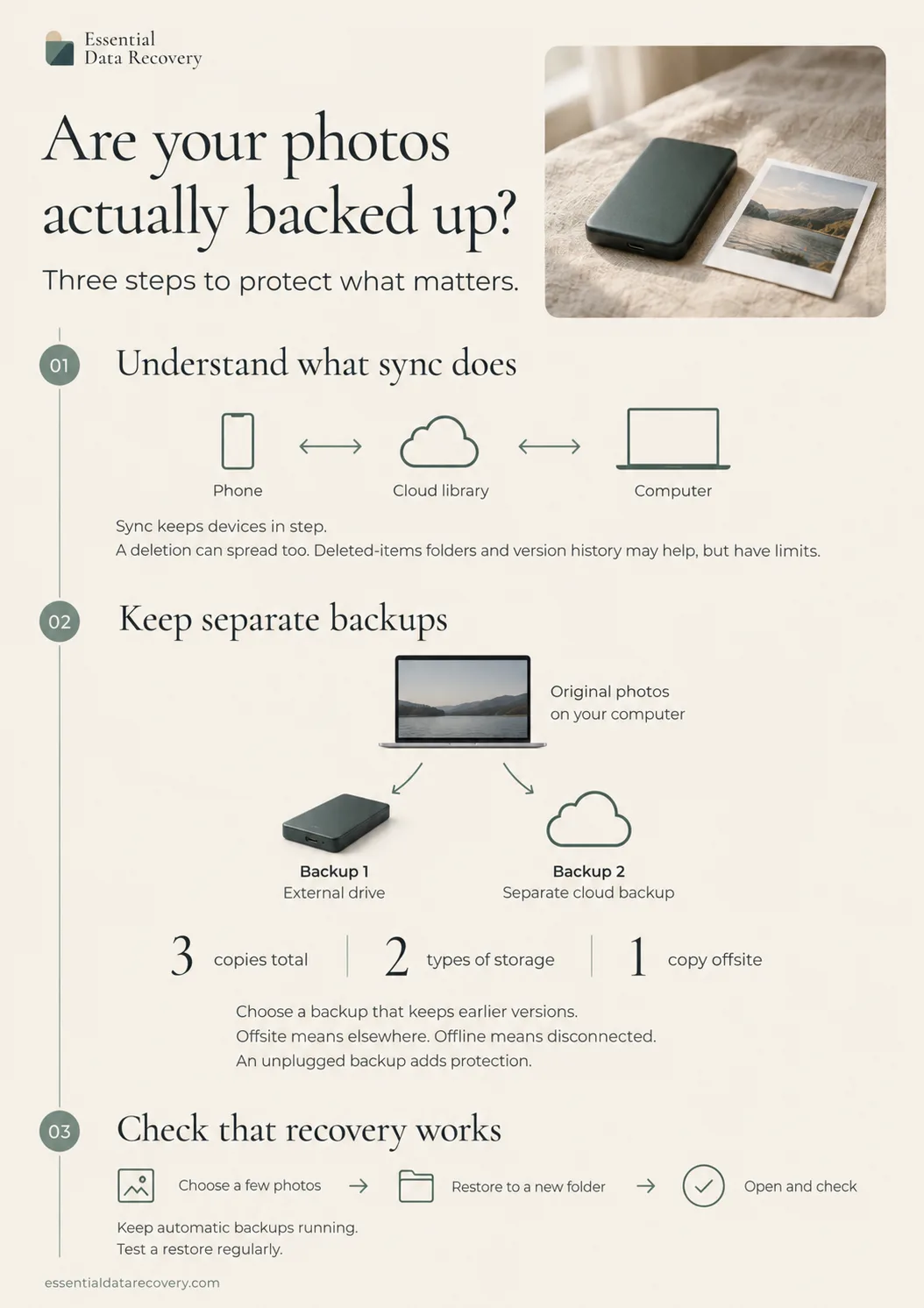
The whole checklist as a designed infographic: how a deletion can travel through sync, the 3-2-1 arrangement (3 copies, 2 types of storage, 1 offsite), and the restore test that proves a backup is real. Click it to view full size, or download the print-ready PDF (US Letter portrait; prints on A4 with “fit to page”).
Why sync is not a backup
Sync keeps your phone, cloud library and computer in step, which is exactly why a deletion can travel: delete on one device and the deletion can spread to the others. Deleted-items folders and version history can help, but they have limits. A real backup is a separate copy that a deletion in your photo library cannot reach.
Deeper guides for each step
- The 3-2-1 backup rule, explained
- Setting up backups after data loss
- How to check a backup actually works
- How often to back up
More printable cards
Free to print and share unmodified. Guidance only: this infographic cannot know your setup. Version 2026-09-16.
Page updated 2026-09-16. Substantive changes are noted on our corrections page.